Showing posts with label Installation. Show all posts

Friday, 1 October 2010

VMware Workstation 7.1.2 on Meerkat 10.10

You probably have noticed: VMware did it again.

They ship a new version, it offers update, downloads fine, installs with a breeze and
... zilch ...
crashes on restart.

vmmon and vsocks do not compile.

How many time does that have to happen?

Here is a patch:
patch-modules.sh
vmware-7.1-2.6.35-3-generic.patch

Download both. Then:
chmod u+x patch-modules.sh
sudo ./patch-modules.sh
This script will save the original driver tars, patch them and run the module installation script.

VMware Workstation should start fine.

Wednesday, 2 June 2010

iPod Nano 5G on Lucid

My daughter got an Apple iPod nano 5G (with camera) for her birthday. Naturally she wanted to put some music on it right away. We could see the iPod as a USB storage device, even transfer data and music. However, the iPod did not recognize the music and therefore could not play it.

Quick fix

To quickly get the iPod nano 5G to work with Ubuntu 10.04 you can either initalize it on a Windows or Apple PC using iTunes. You only need to copy one piece of music onto the iPod.

After this, the iPods local database for music is initialized.

Use Rhythmbox or gtkpod to transfer music to and from the iPod.

If you don't have a Mac or PC available, go to the store and ask the clerk to initialize the iPod for you (Tell them you don't need iTunes only afterwards ;-))

TechnoExplain

iPod uses a local SqLite database to store meta information about music. It gets updated when synced by iTunes. Music is stored in a subfolder /iPod_Control/Music/fxx where xx is a number starting from 00. Rhythmbox stores music correctly in the directory but does not get the last part correct (fxx). Only when the iTunedDB is initialized can Rhythmbox store music in any of the prepared directory. The iPod finds the music and is able to play it.

Sunday, 22 November 2009

VMware Workstation 7.0 works

Dedicated followers of this blog will remember my complaints about VMware never being able to provide a working installation.

After upgrading to Ubuntu 9.10 I had to reinstall VMware. 6.5.2 did not work, 6.5.3 required a trick to circumvent the hangup in the installation procedure.

Two days after getting 6.5.3 installed, my VMware Workstation informed me that there was a new update out. Should I bother going through another hour of nightmare? I read release notes, nothing special: Windows 7 gaming support at the most. Who needs that?

I was reluctant to install. Finally I got myself up to get it over and done with:

Surprise, surprise.

VMware Workstation took longer than any other installation before but it worked out of the box (or installer bundle).

One gets modest over times: Thank you VMware for providing a software that installs, works and performs. (in fact, this is how it should have been all along).

MSI X320 9.10 installation

I tried Ubuntu Netbook Remix on the MSI X320. It boots.

There are some things that do not work as of today:

1. SD-Card still provide error lists (card driver reports card insert-remove cycle permanently, effectively using 80-90% CPU). Disabling is mandatory in 9.10

2. Wireless does not work. There are no drivers in the media

3. Graphics adapter (or screen) not recognized. There is no poulsbo driver in the media.

This is specifically sad as Canonical announced support for Intels new ATOM processors.

I read some rumors about Intel sublicensing the driver code from RALink (which sounds reasonable because RALink provides source code on their website).

The annoying part: Nothing works out of the box.

Tuesday, 27 October 2009

Ubuntu 9.10 client installation

This refers to Ubuntu 9.10 rc1.

I installed 9.10rc1 on a HP510 (2GHz, 1GB, 1280x800 i945), HPnx8220 (2GHz, 1GB, 1650x1080 ati), HP 8510w (2,4GHz, 2GB, 1920x1200 nvidia).

Installation of the core system went fine. Compiz works on all machines, the Intel chipset being the easiest, NVidia requires proprietary drivers.

Switched from Thunderbird to Evolution.

I don't know why this program gets all the hype. Its buggy (and I mean, it is hardly usable). It's a pain to configure offline synchronization (you have to set this in the Edit -> Preferences -> Mail Account -> Edit -> Receiving Options -> Automatically synchronize remote mail locally and the manually right-click the folder -> Property -> Copy folder content locally for offline operation). It's a pain to configure spam protection (in the above mentioned Account Editor you have to set Check new messages for junk content). It does not read news, it is slow and auto filtering does not work all the time.

Why did I swap: Its default, it has Exchange connectivity (not that I need it) and it syncs my Palm pilot and hopefully my Andriod phone.

Network manager still does not work correctly.

Using a mobile broadband internet connection does not work with wireless access points in reach. If wireless is turned off, the connection works fine the first time, consecutive connections do not adjust the resolver settings.

Used a manual override to fix this.

Another issue is purely annoying: Setting the mobile connection to be available system wide will lock you out of editing the settings. One can delete the connection and set it up afresh. As soon as you set system wide availability, the game starts new. Sometimes I would not even get an error message, the network manager applet would simply terminate.

Canon FB363u still does not work.

It's a shame that this used to work in 6.06 but never after. Several attempts to issue bugs failed. Canonical does not react but still provides drivers for the scanner in it's repositories.

Power management?

In 9.04 the battery on my 8510w lasted nearly 4 hours (3.57). This was ok. I remeber having heard the fan twice.

With 9.10 the battery lasts 2h20mins. Worse, ever since the upgrade the fan spins permanently and really loudly. acpi -t tells me that some device has a temperature of over 75° C. It was never that hot before.

Sound issues.

I installed additional gstreamer libraries (bad and ugly). After that I installed VLC. This seemed to render sound output dead on all my machines. Reinstalling gstreamer bad and ugly libraries solved the problem (don't know why)

VMWare ... the usual ...

I didn't expect VMWare to work out of the box. And VMware did not disappoint me.

Cut a long story short, here is the fix. There is another hint out. I did not find the problems described about mouse grabing problems on any of my machines. As I like simple solutions I followed the one on the vmware community site. It works fine.

CUPSpdf.

I used CUPSpdf a lot to print PDFs out any size. In 9.10 CUPSpdf offers adjustment of the paper size. To the application only A4 or Letter is available. I don't know what the use of bigger paper size is if one can't use it.

So where are the good news?

ext4 works fine. It's fast (boot time about 15 secs, used to be 47 secs with 9.04).
Grub2 is fine. It does what it should and stays out of your way.
firefox 3.5 is snappy.
avant window manager is a pretty add-on that makes my life pleasant and easy.

Pretty little if you ask me.

Worth your while?

If neither Windows nor Mac are an option, then the answer would be: yes.

However the pain and frustration (I still can't connect to my campus network via VPN) accumulates.

Monday, 6 July 2009

MSI X320 Wireless installation (obsolete)

This post is obsolete and has been integrated into MSI X320 Installation (revisited).

Wednesday, 24 June 2009

MSI X320 installation (revisited)

(this post has been updated on Sept. 3rd, 2009)

Installing Ubuntu from scratch (unless you want to live with Windows Vista Home Edition) on a MSI X320 is non trivial at best. The notebook comes without any CD-ROM but boots from an external USB CD- or DVD drive.

Installation goes straight forward, the system comes up nicely.

Things to keep in mind

Graphics resolution is 1024x768. The display can run at 1366x768. Here is what you have to do to get it:

Setting the right screen resolution

In Synaptic Package Manager under Settings/Repositories/Third-Party Software add:
deb http://ppa.launchpad.net/ubuntu-mobile/ppa/ubuntu jaunty main
copy the following text to a text file:
-----BEGIN PGP PUBLIC KEY BLOCK-----
Version: SKS 1.0.10

mI0ESXQtMgEEAMtSSxV/TSMW1mEnFVc7DJ/g/7UOq+TnlSs68uVbhUoh0BRuVScOb81dsyTg
IB3WQzbvE2r0ELa+L/hYGsRH9XOq5u+qVtBJmDtUWjT0okVlBBIpyWkM61sWCQYkbs4UcF9a
U+zfy4W1rIY81etivlqWQ79XmZ5iUHHMvGzvbZONABEBAAG0JExhdW5jaHBhZCBQUEEgZm9y
IFVidW50dSBNb2JpbGUgVGVhbYi2BBMBAgAgBQJJdC0yAhsDBgsJCAcDAgQVAggDBBYCAwEC
HgECF4AACgkQmdayHMZZijA7ZAP8DBWyjyo8O8hNbpvN/T7kEB4HxcNd6R6HaGQen3jSBrxe
vviVA1h2Md81C6gnvr/XT/kUYLyEK1oIY+jw8nHl7Z6Vf8kDfDACiN4KJXQY8wMOotQhHCZd
UM93u4yTZy+hWHcHU0/7a5EOU2bT7x3CztYJN7PURR89Sto3aXy3aW0=
=0g8f
-----END PGP PUBLIC KEY BLOCK-----
Save it under the name "msi.key" and import in the tab Authentication/Import Key File... (alternatively you can download the key from here).

Reload the repository. You should now find a package:
poulsbo-driver-2d and
poulsbo-driver-3d as well as
psb-kernel-source (will be needed by the wireless network driver as well).
Install it and its depending packages. Further install
compiz-settings-manager
awn-manager
and all depending packages if you want to mimic Apple.

Now edit the file /usr/bin/compiz. Its a wrapper script to launch compiz. Find the line that starts with:
WHITELIST="..."
Add a space and "psb" at the end so that screen composition works with the Poulsbo chipset.

I also installed AUT2 (the Austrian Ubuntu Theme) which has resembles a silvery blueish style. For that, copy AUT2 into /usr/share/themes and UE-icon-set-light into /usr/share/icons.

After rebooting the machine, you will be greeted with an optimized resolution of 1366x768. Choose the AUT2 theme from the Preferences/Appearance control panel.

Wireless LAN

You might find your machine not offering bluetooth and WLAN. Bluetooth can be turned on with the Fn-F9 key combination. WLAN ist toggled with the Fn-F8 key (not very intuitive icon).

Ubuntu does not provide a wireless driver for the RaLink RT3090 pci card built into the MSI X320. In order to get wireless working you need to download the source file. Either go to RaLink directly:
http://www.ralinktech.com/ralink/Home/Support/Linux.html
and download the file "2009_0612_RT3090_Linux_STA_V2.1.0.0_DPO.tar.gz" or download sources for SuSE 11 (which have some handy patches enclosed):
http://download.opensuse.org/repositories/home:/Akoellh/openSUSE_11.0_Update/src/rt3090sta-2.1.0.0-1.2.src.rpm
The driver derives from the RT2860. If you want to adjust the interface name to wlan-x and the driver name to rt3090sta, you need to patch some source files. SuSE delivers 5 patches, 4 of them apply, on is for 64bit versions only (which do not make sense and I could not get the driver to work with this patch).

Install the patch utility and optionally the rpm utility:
sudo apt-get install patch rpm
Sleves up

Extract the sources. If you extract from the RPM you have to extract the tar.gz contained in the directory within rt3090sta-2.1.0.0-1.2.src as well (I renamed the directory to RT3090 for convenience).

In the RPM sources you find 5 patch files, some decriptive text and the original source directory (is the same as the one from RaLink).

Source code preparation

You can either apply the patches or apply changes manually. To apply patches cd into the directory containing the Makefile (2009_0612_RT3090_Linux_STA_V2.1.0.0_DPO). All patches create a backup of the files patched (they have an extension .orig).
patch -b -p0 ---input=../rt3090sta-2.1.0.0-config.patch
This patches the Makefile and the os/linux/config.mk file. In my case I had to revert the changes in the Makefile (I simply copied the Makefile.orig over the Makefile).

You can apply these changes manually by editing ./os/linux/config.mk. Set:
HAS_WPA_SUPPLICANT=y
...
HAS_NATIVE_WPA_SUPPLICANT_SUPPORT=y
This allows the driver to be controlled from the Network Manager applet.

Next apply the WPA-mixed patch. This changes the encryption cypher to TKIP-AES.
patch -b -p0 ---input=../rt3090sta-2.1.0.0-WPA-mixed.patch
You can change the line in ./common/cmm_wpa.c from MIX_CYPHER_NOTUSE to:
WPA_MIX_PAIR_CYPHER FlexibleCipher = WPA_TKIPAES_WPA2_TKIPAES
manually.

If you use the patch utility, you can change the driver name to rt3090. This is cosmetic:
patch -b -p0 ---input=../rt3090sta-2.1.0.0-remove-potential-conflicts-with-rt2860sta.patch
This replaces all appearances of "rt2860" to "rt3090" in the file ./os/linux/pci_main_dev.c and can be done manually using gedit or vi.

We are nearly there. Another cosmetic change is applied by:
patch -b -p0 ---input=../rt3090sta-2.1.0.0-convert-devicename-to-wlanX.patch
This changes the default ra device to wlan device. You can manually replace the "ra" with "wlan" in the define statements of the file ./include/rtmp_def.h.

If you are not there, go back to the directory containing the first Makefile.

Compile

Simply call
make
This will start the compile process. Don't worry about the error messages. I tried to fix them but the results were no better.

After a while the make process will terminate with an error message (it cannot copy files to the /tftpboot directory). Don't worry, we don't need it.

Install

You can call
make install
or manually copy the driver and bind it to the OS:
cp ./os/linux/rt3090sta.ko /lib/modules/`uname -r`/kernel/drivers/net/wireless/.
depmod -a
There is also an install utility that you can use for this purpose.

Configure

You have to copy the file RT2860STA.dat to /etc/Wireless/RT2860STA. Create the directory Wireless and RT2860STA if it does not exist (if you used make install, this is done for you).

If the file is not found there, the wlan interface will not get registered and you will find an error entry in /var/log/syslog:
... RtmpOSFileOpen(): Error 2 opening /etc/Wireless/RT2860STA/RT2860STA.dat
(I found some posts on the internet that suggested fixing paramters in some configuration files. I think the euphoric success messages are due to frustration and not due to solution. Only having a system readable version of the file in the right place makes the driver work).

Edit the file /etc/Wireless/RT2860STA/RT2860STA.dat. Change the settings for:
CountryRegion
CountryRegionABand
CountryCode
WirelessMode
AuthMode=WPA2PSK
EncryptType
WPAPSK
or Keysettings. You can find the correct parameters to use in the template file README_STA_pci. Ignore advice of the rest of the file, it does not work in Ubuntu.

Start the driver

Before you continue, check the Network Manager applet. It should not offer you any wireless networks nor should you be able to Enable wireless either.
sudo modprobe rt3090sta
should work flawlessly. After a while you should be able to connect to the wireless network. Enter the connection information in Network Manager. If you choose auto connect and connection available to all users, connections will be set up automatically.

Reboot the machine. The driver should get loaded automatically after reboot.

Caveats

Some things to keep in mind:
  • The driver is copied into a directory tree of the kernel libs that gets replaced as soon as the kernel gets updated. You have to copy the kernel driver anew to the correct library path. I presume this is an accepable tradeoff until drivers get shipped with the standard image
  • The driver does not connect to SSIDs that are hidden (as was the case with my WLAN). I had to set the router to show my SSID in order to get a connection. This was the reason it took me that long to figure out how to install.
  • The warning messages that you saw during make do mean something. The source leaves some variables uninitialized. This generally is not a sign of good quality code. However, the driver works sufficiently. I hope RaLink people will deal with the warnings.
  • The driver does not correctly deregister for sleep mode.
Disable non-functional SD card driver

The SD card driver does not work on the MSI X320 (as of September 2009). The sdhci kernel mode drivers are notorious for making the machine unresponsive. The device does not release locking bits thus causing permanent timeouts, slowing the machine considerably. To disable kernel mode drivers in Ubuntu
  • goto /etc/modprobe.d/
  • create a file somenameorother.conf (I called it blacklist_sdhci.conf)
  • edit it to:
    blacklist sdhci
    blacklist sdhci_pci
  • restart the machine
You can edit existing blacklists but they might get overwritten in case of OS upgrades.

Other caveats
Neither suspend to RAM nor hibernating works.

I tried Karmic Koala (9.10) but neither the Poulsbo drivers, the SD card nor power savings were fixed.

Conclustion
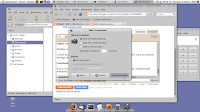
If you can live with rebooting the machine, the MSI X320 is a slim, leightweight notebook. Here is a screenshot of how my machine looks now:
Monday, 22 June 2009

Webmin 1.480

I run webmin to manage my servers. To upgrade I usually download the latest package from the webmin website and install using dpkg.

Today I saw a notification on the System Information page. Following the link upgrades to 1.480. This is the first time upgrading from within webmin worked on my servers.

If you need web based server administration, I can recommend webmin.

Tuesday, 5 May 2009

VMWare Workstation 6.5.2 64 bit bundle

VMware download is still corrupted. I found some torrents around that work fine.

Wednesday, 22 April 2009

VMware Workstation 6.5.1 on 9.04

As described in several places VMware Workstation 6.5.1 does not work on Ubuntu 9.04 64bit edition.

This is due to the fact that autocreation of the modules breaks.

I found a script that is supposed to work in Fedora (which I doubt as the script has some flaws).

Here is a script that works on Ubuntu 9.04 (64bit and 32bit edition alike):
#!/bin/bash

cd ~
rm -rf vmware-modules
mkdir vmware-modules
cd vmware-modules
find /usr/lib/vmware/modules/source -name "*.tar" -exec tar xf '{}' \;
mkdir -p /lib/modules/`uname -r`/misc
rm -f /lib/modules/`uname -r`/misc{vmblock.ko,vmci.ko,vmmon.ko,vmnet.ko,vsock.ko}
rm -f /lib/modules/`uname -r`/misc{vmblock.o,vmci.o,vmmon.o,vmnet.o,vsock.o}
cd vmblock-only; make; cd ..
cd vmci-only; make; cd ..
cd vmmon-only; make; cd ..
cd vmnet-only; make; cd ..
#cd vmppuser-only; make; cd ..
cd vsock-only; make; cd ..

cp *.o /lib/modules/`uname -r`/misc/.
cd /lib/modules/`uname -r`/misc/

ln -s vmblock.o vmblock.ko
ln -s vmci.o vmci.ko
ln -s vmnet.o vmnet.ko
ln -s vmmon.o vmmon.ko
#ln -s vmppuser.o vmppuser.ko
ln -s vsock.o vsock.ko

depmod -a
service vmware restart

cd ~
rm -rf vmware-modules
Copy it to a text file "vmware-build-module", set permissions to execute:
chmod u+x vmware-build-module
and execute it:
sudo ./vmware-build-module
The script creates a directory, extracts the module sources, makes them, copies the kernel modules to the right directory in the /lib tree, sets symbolic links (which the original script laked and it did not work without). It then rebuilds the module dependencies, restarts the vmware service and deletes the directory with the compiled modules.

Once done, you should be able to start VMware Workstation 6.5.1 without problems. If you have, let me know.

Note: There is no error checking whatsoever. At least, the script does not remove any other files in the misc directory if there are any.
Note: Sorry there is no download. I wish there was something like the image upload here.

Sunday, 29 March 2009

OpenOffice 3.0 with Samba file shares

With OpenOffice 3.0.1 (it has to be added using an external ppa repository from Launchpad) I could not read nor write files to and from my Samba file server. It worked under 2.4.1.

Developers on Launchpad denied to acknowledge the bug, even though it was reported widely on the internet.

The issue seems to have something to do with the way, OpenOffice authenticates with Samba. In order to get a different behaviour, one can change the way, OpenOffice is called.

If you start OOo from the menu, the call is:
ooffice -writer %U (with calc and the others following the pattern)
This tells OpenOffice, it should hand the user credentials to samba and authenticate. The result is the well documented error, the file cannot be read or written, a dialog asking for username and password for workgroup MSHOME, etc. appearing.

Under Ubuntu 8.10 you can adjust the menu setting to:
ooffice-writer %F (same with all the others)
If you have a connection to the Samba server (e.g. a share mounted), you can access the files there, both read and write.

This is a workaround for Ubuntu 8.10 (sorry for posting it so late, but I did not find out until recently).

Under Ubuntu 9.04 (bound to be out April 23, 2009) OpenOffice works with the %U parameter as well.

Sunday, 21 December 2008

Upgrading 8.04 Server -> 8.10

Ubuntu 8.04 is a Long Term Support (LTS) release. This implies that automatic upgrades to later releases are supressed in favour of having a stable system.

If one wants to upgrade from 8.04 to 8.10 (server edition) one has to edit the file
/etc/update-manager/release-upgrades
Search for the string:
Prompt=lts
and change it to:
Prompt=normal
(as described in the comments of the file). Now you should be able to run the upgrade utility:
sudo do-release-upgrade
This will start the upgrade process.

If you have followed previous hints on upgrade in this blog, you might have the upgrade-manager-core utility installed on your system (which includes do-release-upgrade). If not, you have to install it with sudo apt-get --install.

Upgrade takes approximately 20 mins on my server and requires a reboot to finalize the installation process.

Wednesday, 29 October 2008

Updating to Ubuntu 8.10 (64bit)

I recently described that upgrading to 8.10 beta was no pain at all. Today I upgraded my production notebook (as tomorrow will be the big day and I presume there will be no bandwidth available).
sudo update-manager -d
Here are some miscellaneous updates on my previous report:
  • VMware Workstation 6.5 offers a new dialog informing you that kernel drivers require updating. You can confirm and it does it automatically. (Hey, this is a feature I long waited for)
  • There is something with the new font in Mozilla. It is slightly slimmer (like Helvetica vs. Arial) and it gives a much nicer look on pages.
  • OpenOffice installation as described in my previous article works on 64bit equally well.
My thanks to Canonical (the Debian group, the Gnome fellows, the OpenOffice folks and all the others that participated). This edition of Ubuntu deserves to be called a desktop alternative.

Tuesday, 28 October 2008

Open Source tool to migrate Outlook calendar

When I moved from Windows to Ubuntu, I faced one mayor hinderance: Outlook.

In particular, migrating calendar entries from Outlook was near impossible.
  • OL2003 lets one export one single calendar item to iCal format (and you have to use a trick to even get there).
  • OL2007 lets you export more than one entry at once, if the entries are less than 1000 and do not span more than a 10 year periode (earliest to latest entry).
The last limit is particularly nasty, as birthdays will not migrate and if you have more than 1000 entries (which I had), you have to partition the export (which means you have to switch to list view, which also shows canceled and updated calendar entries).

FreeMiCal

Cut a long story short, I wrote a little program, available on SourceForge that exports all calendar items at once, regardlessly.

FreeMiCal comes as a source zip-package or just the executables (for easy use). It is written in C# and requires nothing more than a Windows machine with Outlook 2003/2007 and .NET 2.0 installed.

FreeMiCal was downloaded over 11.000 times in the last year. It seems to do the job and helps obliviate Outlooks calendar lock-in.

OpenOffice 3.0 on Ubuntu 8.10

OpenOffice 3.0 is not released with Ubuntu 8.10. I downloaded OOo300 (.deb) from the OpenOffice web site, unpacked them and tried to install it.

Using the update shell script did not work

Installing all .debs packages manually is possible but tedious. One also risks that aptitude or apt-get does not see the installation. Certainly, old packages are not removed. This page describes the procedure. Not recommended.

Using dpkg-scanpackages to create a Packages.gz is a possibility. However, this requires to install from a local drive which produces errors. Not nice, but works.

The Fast lane

The following procedings seems the fastes and most secure way to install OpenOffice 3.0 and maintaining the upgradability on the fly:
  1. Launch Synaptic Package Manager
  2. Select Settings/Repositories (this will start the Software Sources control panel)
  3. Add the following line to the Third party software repositories:
    deb http://ppa.launchpad.net/openoffice-pkgs/ubuntu intrepid main
  4. Close the dialog and confirm that the list of repositories will be reloaded
  5. Choose Mark All Upgrades
  6. Apply changes.
This will upgrade your OpenOffice 2.4.1 to 3.0. It will also migrate your settings (some things are reset though, like the year offsetting digit replacement).

Warning!
I have tested this on Ubuntu 8.10 32bit and it works. On 8.04.1 64bit it seems that not all programs are available as packages (e.g. Draw and Impress are missing). I turns out, this is due to missing libraries.

VMware Workstation 6.5 on Ubuntu 8.10

VMware Workstation 6.5 comes in 32bit and 64bit flavours. If you download, you can either get RPMs or installable files, that end in the extension .bundle. These are combined shell scripts with embedded binaries.

Installation works fine. First I had to chmod the file to be executable, then sudo ran it. Ths installation starts a graphical installer that does the rest. If you have Eclipse installed, you can accept the path to the debugger. Other than that, no excitement.

The installer copies both VMware Workstation 6.5 as well as VMware Player 2.5 onto the machine. It recognises and takes over the old settings (both network and VM favorites). Also the software recognises fingerprint readers as well as bluetooth devices.

The installation still requires vmware-config.pl if you change kernel modules.

Unity

A new feature in VMware Workstation 6.5 is Unity. It allows guest applications to run in parallel with native host applications.

In practice this means, I can run Visual Studio side by side to my native OpenOffice or Geany IDE.

If nothing else, this feature is the reason to upgrade.

Other than that, there are background snapshots, background operation, enhanced settings on VMs, etc.

Saturday, 4 October 2008

Upgraded to Ubuntu 8.10 (32bit)

I upgraded to 8.10 b1 today.
sudo update-manager -d
My first impression is positive. The system upgraded fine on my HP nx8220. Some visuals irritate me though:
  • Menus now have two broad lines indicating a submenu (I liked the black triangles)
  • Some icons come directly from the gnome desktop (The quit icon is a running man in green, while the original was this ring with a vertical bar on red ackground)
  • There are two ways to exit a session. One allows to switch users, the other adds shutdown and hibernate to the menu.
Some apps were dropped to maintain compatibility to Debian:
  • I used AVscan as a frontend to clamAV. This was dropped. I replaced it with ClamTK (which has a nicer GTK+ GUI). It's ok.
I had a tool that allowed to adjust the display (external monitors, frequency, and resolution). displayconfig-gtk was dropped (after being introduced in 8.04). The Preference panel "Screen Resolution" offers the functionality as well as lets the display be controlled from the panel. This is nice.

What else needs mention?
  • Netbeans comes in V6.1 (nice and fast. Core modules update from the Netbeans website)
  • MonoDevelop is V1.0 (disappointing, as V2.0 a1 is out)
  • Geany is 0.14 (offers improvements under the hood, I keep it as a fast IDE)
  • Network Manager 0.7 offers a clear and clean interface for managing network connections (there will be thorough testing this on my side)
  • There is OpenJDK with Webstart on the machine
I did not find much of a change with Gnome 2.24. Tabs in Nautilus are OK but nothing spectacular. I didn't find the promised improvements on PAM so far.

Tuesday, 30 September 2008

VMware Server 2.0 changes some things

VMware Server 2.0 is out and installing it changes some things.

First, installing over a running VMware Server 1.0.7 did not work. The installation routine complained about a running instance of the server:
vmrun stop /path/to/vm/file.vmx
solves the issue. I installed over the previous version (the installation routine deinstalled 1.0.7 for me).

No problems installing, however, the installation routine asked for a http port and suggested port 80. Port 80 is taken by apache and the installation routine acknowledges this. I also run MUI (the web frontend for 1.0.x) on port 8333. This does not work either.

One can choose any free port (as there will be a Tomcat server be installed).

VMware Server 2.0 comes with its web interface integrated (as mentioned, Tomcat). There is a browser based console window that installed without any problems.

VMware Server Console for the client provides an error:
Unable to connect to the remote host: 501 Global command GLOBAL server-vmdb to non-host agent targets not supported.
I did not find a version of the linux client that works with 2.0 yet. However, it's not neccessary either. The built in browser console does the job nicely.

Upgrade VMware Tools in virtual machines

I strongly recommend updating the VMware Tools in Windows VMs. Much to my surprise, the visual performance and speed increased significantly. Also I could adjust my screen resolution to fit the size of my monitor.

VMware Server 2.0 offers another nice feature that I missed previously: Administration of user rights via the graphical interface (remember, you had to set file access rights to allow for different user rights in the VMware Server).

After installation of VMware Server 2.0 I deinstalled the MUI on the server and the client console on my client machines. I don't need them.

Sunday, 15 June 2008

Updating VMWare Server, MUI and Console

Updating VMware Server 1.0.5 to 1.0.6 works fine. However, installing VMware MUI afterwards breaks with VMware MUI 1.0.6.
VMware Server must be installed on this machine for the VMware Management Interface to work
Installation aborts.

In order to fix this I had to remove the library libgcc_s.so.1 in /usr/lib/vmware/lib/libgcc_s.so.1:
mv libgcc_s.so.1 libgcc_s.so.1_orig
Installation of MUI worked fine afterwards.

In order to start the management interface during the next reboot one has to add a few lines at the beginning of /etc/init.d/httpd.vmware:
RUNDIR="/var/run/vmware/httpd"
OWNER="www-data"
GROUP="www-data"

/usr/bin/test -d "$RUNDIR" || \
/bin/mkdir -p "$RUNDIR" && /bin/chown "$OWNER:$GROUP" "$RUNDIR"
Now, the management interface survives a reboot.

This workaround fixed the installation problem of the server console on the workstation as well.

Monday, 28 April 2008

Distribution Upgrade 7.10 -> 8.04

As with the upgrade from 7.04 to 7.10:
  1. sudo do-distribution-upgrade
  2. keep the configuration files
  3. accept deletion of outdated files
  4. reboot
For a complete list of prerequisites visit my old article here.

There is an error in Webmin 1.410. It shows Apache2 server as being stopped. This is not the case as one can verify with ps afx | grep apache2. I will post a fix as soon as I found one.

Configuring VMware Server

In Kernel 2.6.23, a change was introduced that breaks vmware-server (a complete explanation can be found here):

Another solution is to get the vmware-any-any-patch116.tar.gz. I unpacked the tar and copied vmmon.tar and vmnet.tar into /usr/lib/vmware/modules/source.

vmware-config.pl configured the server (ignore the warnings, the server starts fine), and ran vmware-config-mui.pl.

Server is now up and running.